
One of advanced features of WebBookingPro is ability to set up Rates on several ways:
If you have “Seasons” we recommend defining seasons so you can easily later add season periods in your Rates for every room. This is not necessary.
Click on Properties & Rooms – [Define] (under Periods column).
With “Add New” Button you can define seasons. With Edit you can Modify Season info, or with Delete icon Delete Season info.
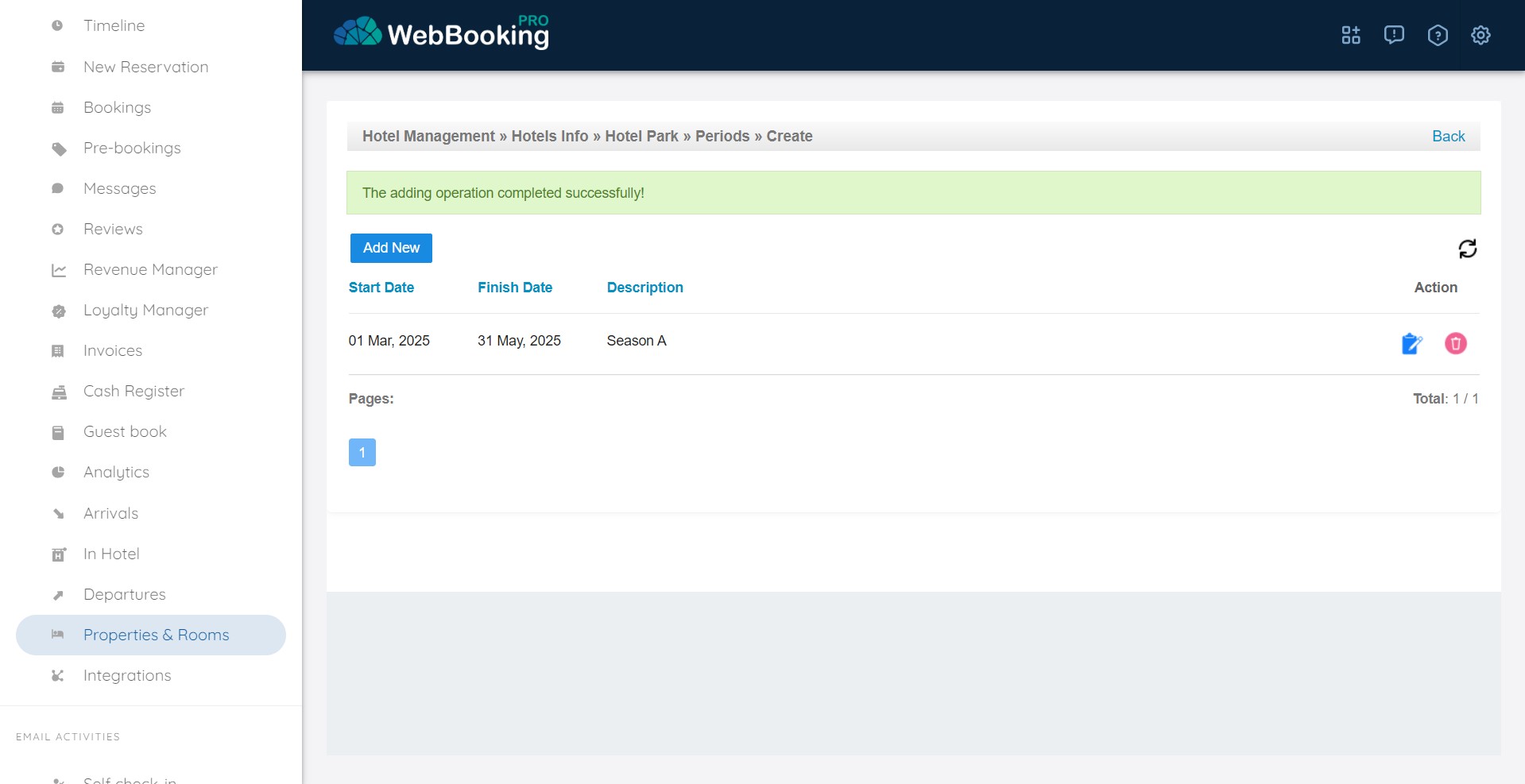
After creating or modifying Periods please do full refresh of website – with refresh button on your browser or with keyboard key F5.
Then go to Cockpit.
What is your pricing strategy?
There are several “Strategies” properties use for their pricing…
Strategy 1: Most vacant rentals and some hotels use “Room Rate” strategy. So the price is same for any number of persons in the room.
Later in Cockpit you will see prices like this…

Strategy 2: Some hotels use classic strategy with custom “Double use”, “Single use” and sometimes “Tiple use”.

Strategy 3: Some hotels use base price strategy when price is set for e.g. 2 persons (2 adults) and later price is sometimes corrected based on this base price – e.g. Single use is 30% cheaper. Extra person is with addition of 45 EUR or 30%.


Strategy 4: Per person prices. If you define on Room Type (or even on Rate Plan) that pricing is “per person” you will only set up price per adult per room/day. From Charges menu you can set up Increase for Short-stay or Single-use. Discounts for extra adults (e.g. over 2 adults) or per children are defined under “Promotions & Campaigns”.
Both Charges or Discounts can be set on specific room type (or all room types), for specific rates all rates except specific rates, for specific days in week, periods in year and other conditions.
Strategy 5: Can be combination of any of strategies – e.g. some units use Strategy 1, some 2, some 3…
Tips: Since WebBookingPro supports Occupancy based pricing on Booking.com and Expedia, we recommend having either Strategy 2 or Strategy 3 or Strategy 5 if you accept Single use or you have Suites with ability to accept many persons (e.g. 6) so we can e.g. differentiate price from 2-6 persons…
Also Rate Plan can have completely different strategy – not inherited as Room Type.
Setting new prices or overwriting existing
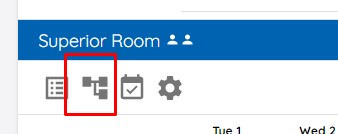
Setting prices can be done from two different interfaces. First one is Cockpit and second one is “Prices” interface available via small link in Cockpit (under each room type there is a small icon called “Prices”)
All price operations immediately send prices to connected OTA channels.
First click on “Set Long-term” button…

This is common template for Strategy 1 (Price per room). Choose Room Type, Choose Predefined Period or set Custom Period from/to, from Set select choose “New Price per Room” and in field Value enter price.
Be aware be default decimal point is comma. You can change it from Settings – Profile…

For Strategy 2 (custom price based on number of persons/adults) from select “Set” choose “New Price single use” for single use or “New price Adults+Children” for all other situations.


For “Double use” price choose Adults:2 , Children: 0.
For “Triple use” price choose Adults: 3, Children: 0,
For Strategy 3 you will have to set Base price (e.g. for double use) as described for Strategy 2. Now we have to define correction which can be addition or discount in fixed amount or in percent (ratio). Click “Set Long-term” button, from select “Set” choose “New Relative Price (Adults+Children based on Adults+Children)”.

Generally most hotels do this only once a year and for whole year. E.g. they set 30% discount for single use (Adults: 1, Children: 0) based on double use (Adults: 2, Children: 0) for period 1/1 – 31/12, Multiply factor 0,70, Correction factor: 0.
Example can be addition of 45 EUR for 3rd person. Choose Adults: 3, Children: 0, based on Adults: 2, Children: 0, for period 1/1 – 31&12, Multiply factor 1, Correction factor 45.
Always first Correction factor used and after it number is multiplied with “Multiply factor”. If Multiply factor is 1 and Correction factor is 0, there is no correction. Multiply factor 0,8 is equivalent to 20% discount, multiply factor 1,5 is equivalent to increase of 50%.
Tips: When you want to set up prices for next year, we suggest you using Cockpit with “Set Long-term” button. First select first room, select first Period, set up price as described before and “Do changes”. Again, just click on “Set Long-term” button and all previous settings are set. Generally in this set you just need to change Room Type, change price and “Do changes” again. When you finish all room types for first Period, just set again first Room Type, set New Period and repeat all steps as before. Usually this whole procedure takes only couple minutes for average hotel with 6 room types, 6 seasons, for whole year.
Correcting existing prices
When you have some existing prices, you can easily correct daily prices via Cockpit. Change any price you see and after it click on button “Save changes”.

You can also use “Set Long-term” button and from select “Set” choose “Price correction” for desired “Room Type”, “Rate” and “Period”. This can also be interesting for “All Rooms”.

Price correction can have 2 different modes – Correction Mode. Absolute value or percentage. Value field can be positive or negative (e.g. -30).
Another solution for easy correction of prices over whole year is using “Prices” interface available via “Prices” icon under “Room Type” on cockpit.


From here you can either delete full periods by clicking on “Trash” icon or change one or several prices on the right column. After any change you will have to confirm operation with “Save changes” button.
Price interface can be customized to see all rates or just specific rate, to view by periods or by day.
All those set up as possible on “Standard (Base)” or any custom “Rate Plan”that has Separate pricing.
Custom Rate Plans can have separate pricing or can be linked to “parent” rate with corrections.
Understanding Yielding
Using Bar levels (Yielding) is most popular and easiest way to change prices.
By default all rates have default Yield level / Bar level 100. This means price is without correction. If the Yield level is 90 it means price is 10% lower. If the Yield level is 110 it means price is 10% higher.
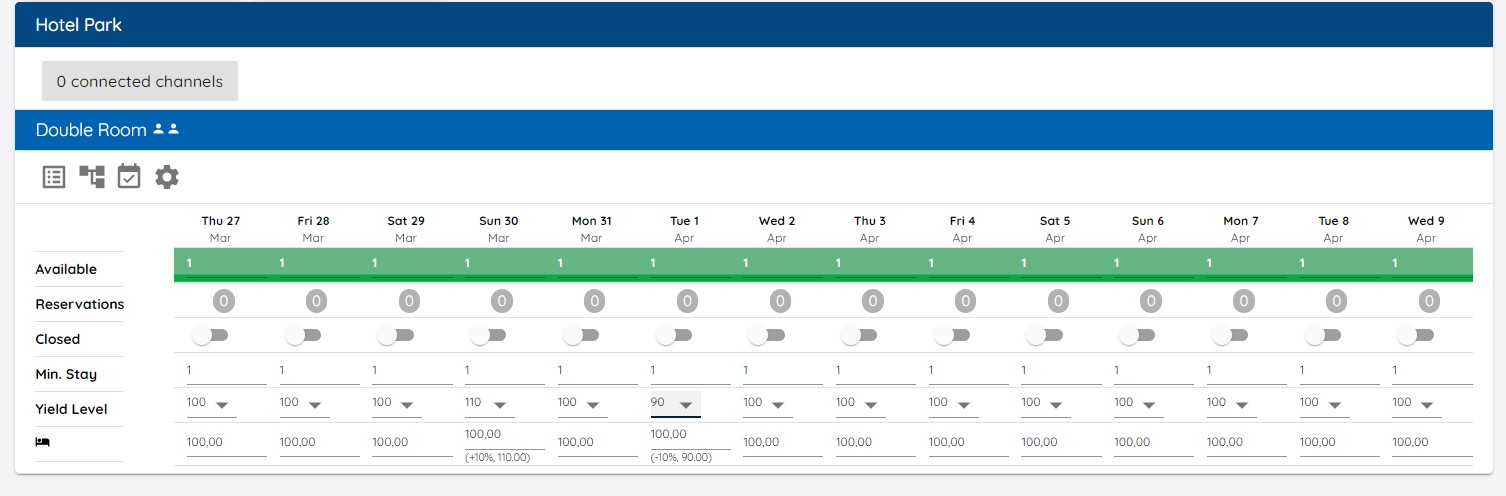
You can yield prices manually changing:
- by setting specific yield level in Cockpit
- by using Set Long term button, choosing room type, rate, periods, days, and choosing Set Yield level
- or using Adjust (Correct) Yield level
You can use Revenue Manager functionalities to automatically yield prices based on your rules and conditions. Any change in Yield level immediately changes on this and all linked rates – used on Web or connected OTA channels.
Understanding which prices are visible on Booking engine (Web) and what is sent to Channels
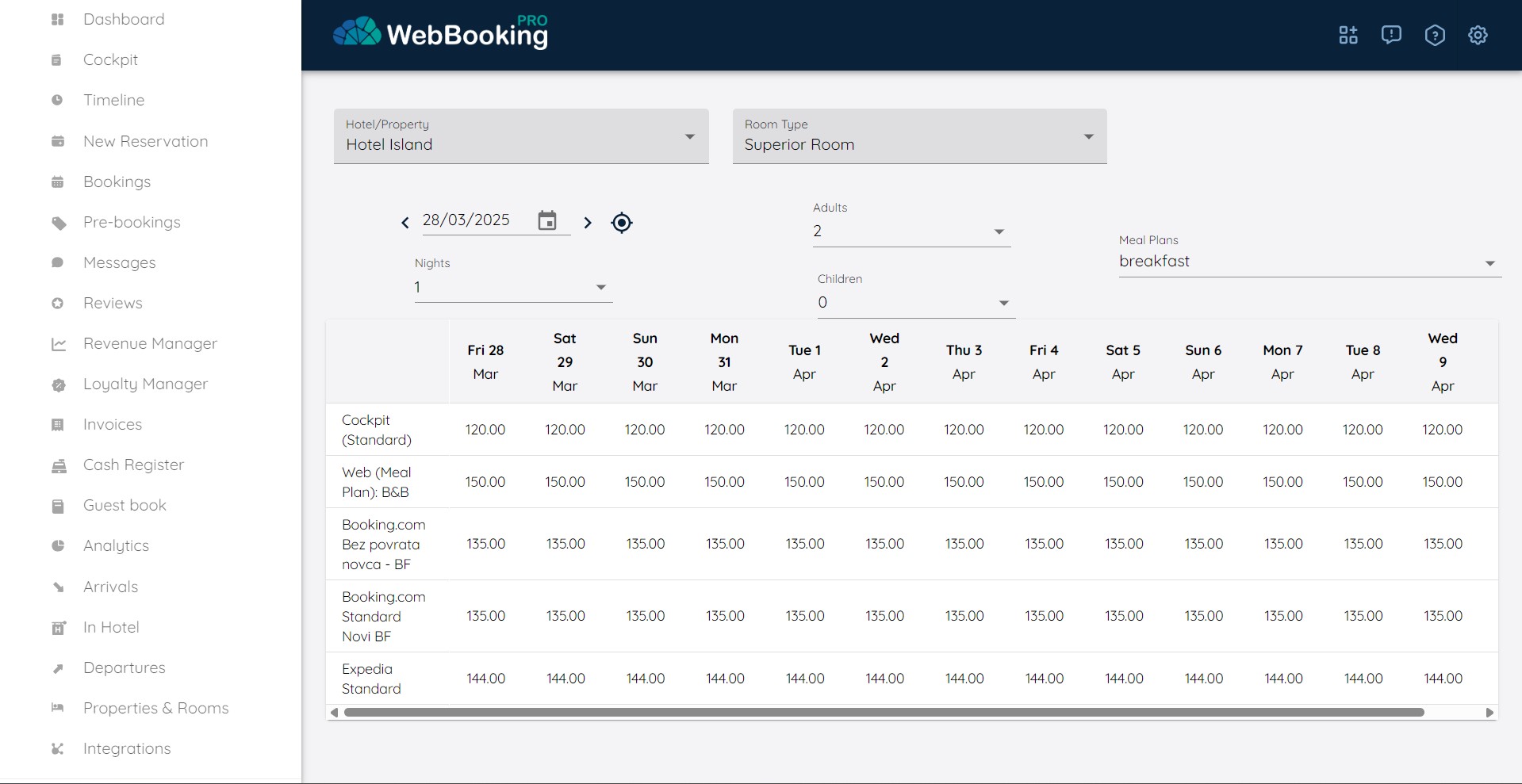
For all Meal Plans that have “Web=Yes” (Available on Web checkbox checked) those prices are visible. They are calculated based on “Standard (Base) Rate” with addition specified in Meal Plans item. Addition can be per person (adult or child) or per unit/night.
For all Rate Plans that have “Show on Web=Yes” (Available on Booking engine checkbox checked) those prices are visible. They can be calculated based on linked “parent” rate with correction (either in +/- amount and +/ % or per adult/child person), or completely separate.
If you have multiple Rate Plans created, in Cockpit you will have possibility to choose which Rate Plan to see/modify. Hotels usually have different rate plans for halfboards, for OTAs, for specific channels and for packages.
Custom Rate Plans can have different visibility level on Booking engine (if enabled). Standard visibility, Featured or Highlighted. Featurued will visually make them more attractive. Highligher will put them on top of all other Rates (usefull if you want to make some rate (package) more visually promoted).
To see all calculated prices for all web available rates and channels click on “Parity Rates”
Importing prices from Excel document
WebBookingPro supports importing prices through .CSV file created in Excel.
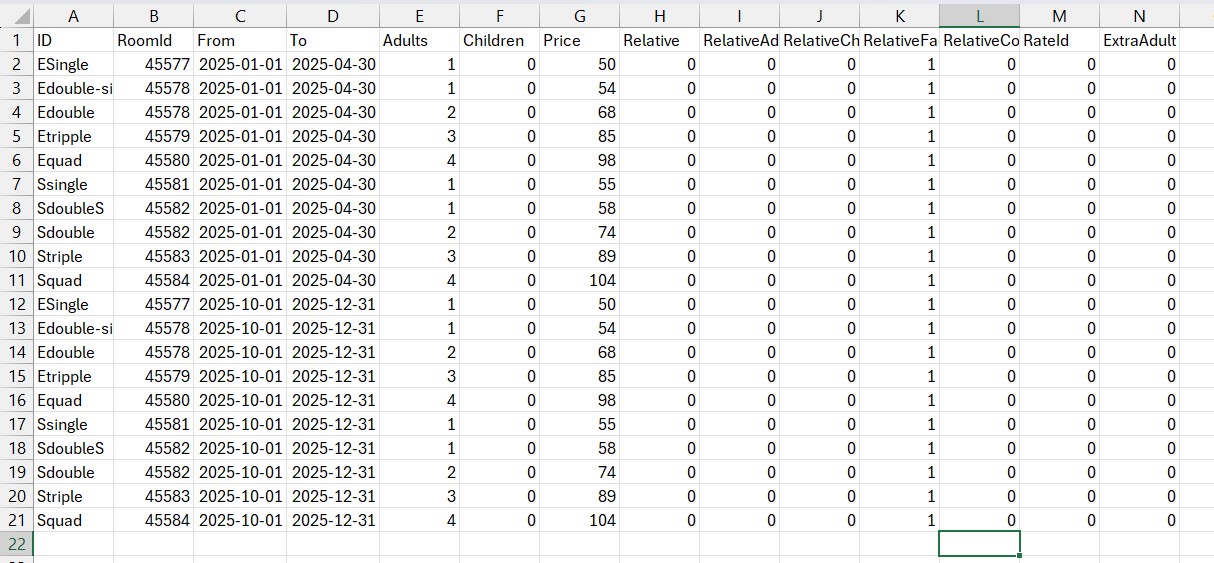
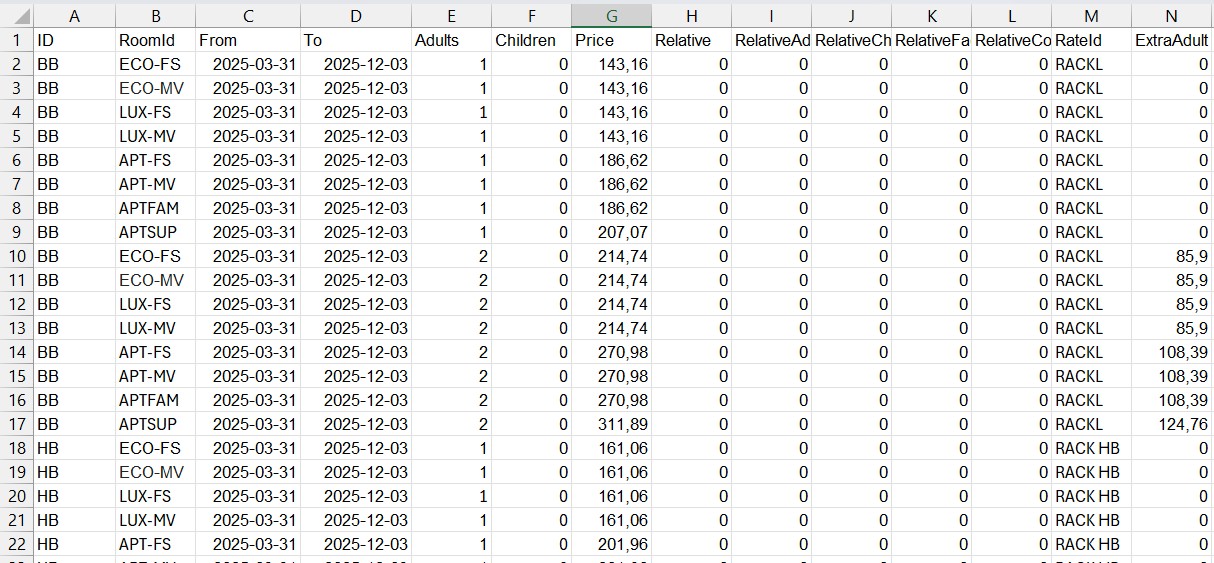
Here are example of import files for some hotels. Columns names are FIXED, but order is not . You can reorder as you wish. Delimitirer is Semicomma ;!
ID is just for you – something for you to mark for this line – not used by us
RoomId – can be number as ID from WebBookingPro (Visible in Properties & Rooms -> Rooms) or RoomCode for Opera PMS customers
From, To – should be in format YYYY-MM-DD
If Relative is 0 it means price is not relative and it is for combination Adults and Children. If Adults and Children is set as 0 it means price is Per room.
If Relative is 1 you should also set up RelativeAdults, RelativeChildren,RelativeFactor and RelativeCorrection.
E.g. Adults 3, Children 0, Relative 1, Relative Adults 2, Relative Children 0, Relative Factor 1.3, RelativeCorrection 0 means that price for 3+0 is based on 2+0 + 30%.
RateId – 0 means Standard (Base) Rate, can be number as ID from WebBookingPro (visible in Rate Plans) or RateCode for Opera PMS customers
Extra Adult – it is added to any extra adult over Adults up to MaximumAdults defined for this room type.
Price should be with dot as decimal separator.
Note: Combination Adults 0, Children 1 can be used for “per Child” price in Occupancy based pricing. This also needs to be check in Room Type configuration.
Importing rates is done via Cockpit -> “Import Rate” button.